YuppTV Smart TV & Device Setup Guide – Firestick, Roku & More
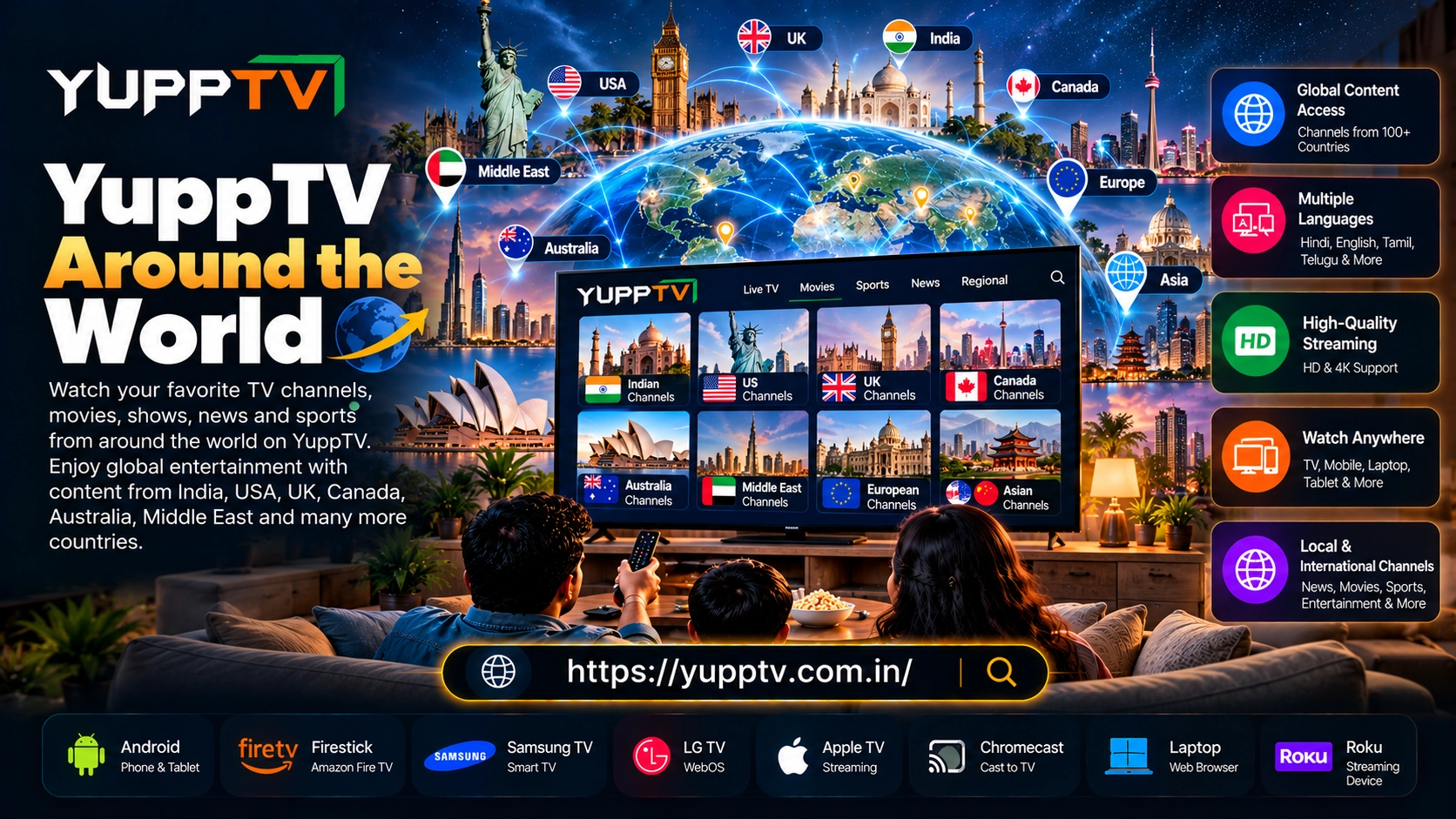
YuppTV supports online television across several compatible devices. Viewers can access available content through smartphones, Smart TVs, streaming devices, and computers.
The setup process depends on the device and operating system. Application availability can also vary by country and device model.
This guide explains how to use YuppTV across popular devices. It also covers installation, login, casting, compatibility, and common troubleshooting problems.
What Devices Support YuppTV?
YuppTV can be available across several device categories. Supported platforms can change as applications and operating systems receive updates.
Common device categories include:
- Android smartphones and tablets
- Android TV
- Amazon Fire TV
- Roku
- Samsung Smart TV
- LG Smart TV
- Apple TV
- Chromecast-supported devices
- Laptops and computers
Always check the official application store for your specific device.
YuppTV Smart TV
Smart TV viewing provides a larger-screen experience for live television and entertainment. Supported television platforms can access YuppTV through their application stores.
The general setup process is:
- Connect your Smart TV to the internet.
- Open the television’s application store.
- Search for YuppTV.
- Install the official application.
- Open YuppTV.
- Sign in to your account.
- Browse available content.
The exact steps can differ between television manufacturers.
YuppTV Samsung Smart TV
Samsung Smart TVs use the Samsung application ecosystem for supported applications. Users can search for YuppTV through the available app store.
How to Install YuppTV on Samsung Smart TV
- Turn on your Samsung Smart TV.
- Connect it to a stable internet connection.
- Open the Apps section.
- Search for YuppTV.
- Select the official application.
- Install the application.
- Launch YuppTV.
- Sign in to your account.
If YuppTV does not appear, availability may depend on your country or TV model.
YuppTV LG WebOS
LG Smart TVs use the WebOS platform. Supported applications can be installed through the LG content store.
How to Install YuppTV on LG TV
- Connect your LG TV to the internet.
- Open the LG Content Store.
- Search for YuppTV.
- Select the available official application.
- Install the application.
- Launch YuppTV.
- Sign in to your account.
Older WebOS versions may have different application compatibility.
YuppTV Android TV
Android TV provides another option for watching YuppTV on a television.
How to Install YuppTV on Android TV
- Open Google Play Store on Android TV.
- Search for YuppTV.
- Select the official application.
- Choose Install.
- Wait for installation to finish.
- Open YuppTV.
- Sign in.
- Browse available channels.
Application availability depends on the device and region.
YuppTV Firestick
Amazon Fire TV devices can provide a convenient way to access supported streaming applications.
How to Install YuppTV on Firestick
- Connect the Fire TV device to your television.
- Connect Fire TV to the internet.
- Open the application store.
- Search for YuppTV.
- Select the official application.
- Install the application.
- Open YuppTV.
- Sign in to your account.
If the application does not appear, check regional availability and device compatibility.
YuppTV Roku
Roku provides another television streaming option for supported applications.
How to Install YuppTV on Roku
- Turn on your Roku device.
- Connect it to the internet.
- Open the Roku Channel Store.
- Search for YuppTV.
- Select the available official channel.
- Add the channel.
- Open YuppTV.
- Sign in.
The YuppTV Roku channel may not be available in every region.
YuppTV Apple TV
Apple TV users can check the App Store for YuppTV.
How to Install YuppTV on Apple TV
- Open the App Store.
- Search for YuppTV.
- Select the official application.
- Install the application.
- Open YuppTV.
- Sign in with your account.
- Browse available content.
Older Apple TV models may have different application compatibility.
YuppTV on iPhone and iPad
YuppTV can be accessed through supported iOS devices where the application is available.
How to Install YuppTV on iPhone
- Open the Apple App Store.
- Search for YuppTV.
- Select the official application.
- Tap Get.
- Complete the installation.
- Open the application.
- Sign in.
Check the application’s current system requirements before installation.
YuppTV on Android Mobile
Android users can check Google Play for the official YuppTV application.
How to Install YuppTV on Android
- Open Google Play Store.
- Search for YuppTV.
- Select the official application.
- Tap Install.
- Wait for installation.
- Open the application.
- Sign in.
Using the official application source is recommended for account safety.
YuppTV on Laptop
Users can access supported YuppTV web services through a laptop or desktop computer.
A computer can be useful when a Smart TV or streaming device is unavailable.
How to Watch YuppTV on Laptop
- Open a supported web browser.
- Visit the official YuppTV website.
- Select the sign-in option.
- Enter your account details.
- Open the Live TV section.
- Select available content.
Browser compatibility can change as web services are updated.
YuppTV on Chrome
Google Chrome can be used for supported YuppTV web services.
For a smoother experience:
- Keep Chrome updated.
- Use a stable internet connection.
- Close unnecessary browser tabs.
- Disable problematic extensions when necessary.
- Clear browser cache if playback fails.
Web availability can depend on the current YuppTV service.
YuppTV Chromecast
Chromecast can allow compatible devices to display supported YuppTV content on a television.
How to Cast YuppTV with Chromecast
- Connect Chromecast to your television.
- Connect the Chromecast and mobile device to the same network.
- Open the supported YuppTV application.
- Select available casting controls.
- Choose your Chromecast device.
- Start the selected content.
Casting support depends on the application and device.
YuppTV Device Compatibility
Compatibility can depend on several technical factors.
Important factors include:
- Operating system version
- Device model
- Application version
- Country
- Internet connection
- Available storage
- Application store support
An older device may not support the latest application version.
YuppTV Device Comparison
| Device | Typical Setup Method | Main Use |
| Android TV | Google Play | TV streaming |
| Firestick | Amazon App Store | TV streaming |
| Roku | Roku Channel Store | TV streaming |
| Samsung TV | Samsung Apps | Smart TV |
| LG TV | LG Content Store | Smart TV |
| Apple TV | App Store | TV streaming |
| Android Mobile | Google Play | Mobile viewing |
| iPhone/iPad | App Store | Mobile viewing |
| Laptop | Web browser | Computer viewing |
| Chromecast | Casting | TV display |
Actual support can vary by region and device version.
YuppTV Login on Smart TV
After installation, users may need to sign in before accessing subscription content.
A typical process includes:
- Open YuppTV.
- Select Sign In.
- Enter your account information.
- Complete any required verification.
- Continue to the main interface.
Some applications may provide alternative login methods.
YuppTV Account Activation
Account activation requirements can depend on the service and device.
If an activation code is displayed, follow the instructions provided by the official YuppTV application.
Do not enter account credentials on unfamiliar websites.
YuppTV App Update
Keeping the application updated can improve compatibility and resolve known issues.
A typical update process involves:
- Open your device’s application store.
- Search for YuppTV.
- Open the application listing.
- Select Update if available.
- Wait for installation.
- Restart YuppTV.
Automatic updates can also be enabled on supported devices.
YuppTV Automatic Updates
Automatic updates can help maintain application compatibility. However, the exact setting depends on your device.
Users can generally manage automatic updates through the device’s application store settings.
Keeping the operating system updated can also improve compatibility.
YuppTV Not Working on Smart TV
YuppTV may sometimes stop working correctly on a Smart TV.
Possible causes include:
- Internet problems
- Application errors
- Outdated software
- Unsupported device
- Account issues
- Regional restrictions
- Temporary service problems
Try basic troubleshooting before reinstalling the application.
YuppTV Not Working on Firestick
If YuppTV does not work correctly on Firestick, try these steps:
- Check your internet connection.
- Restart the Fire TV device.
- Update YuppTV.
- Restart the application.
- Clear the application cache.
- Check your account status.
- Reinstall the application if necessary.
If the application is unavailable entirely, check regional compatibility.
YuppTV Not Working on Roku
Roku users can try several basic troubleshooting methods.
- Restart the Roku device.
- Check the internet connection.
- Update the YuppTV channel.
- Restart the channel.
- Check account status.
- Reinstall the channel if necessary.
Persistent problems may require official support.
YuppTV Not Working on Android TV
Android TV users should first check the internet connection.
Then try:
- Restarting Android TV.
- Updating YuppTV.
- Clearing application cache.
- Restarting the router.
- Checking account status.
- Reinstalling YuppTV.
Make sure the device meets current application requirements.
YuppTV App Not Opening
An application may fail to open because of software or device problems.
Possible solutions include:
- Restart the device.
- Update the application.
- Update the operating system.
- Clear application cache.
- Check available storage.
- Reinstall the application.
If the problem continues, check official support information.
YuppTV Buffering on Smart TV
Buffering is commonly related to network conditions. Device performance and stream quality can also affect playback.
Try these solutions:
- Restart your router.
- Use a stable Wi-Fi connection.
- Move the router closer.
- Close other network-heavy applications.
- Lower video quality.
- Restart the television.
- Update YuppTV.
Higher-quality streaming generally requires more bandwidth.
YuppTV No Sound
If video plays without audio, check the following:
- Increase television volume.
- Check mute settings.
- Test another application.
- Restart YuppTV.
- Restart the television.
- Check connected audio devices.
- Update the application.
If other applications have sound, the issue may be application-specific.
YuppTV Black Screen
A black screen can result from application, network, or device problems.
Try restarting the application first. Then check the internet connection and application updates.
If the issue remains, restart the streaming device and test another available channel.
YuppTV Login Problems on TV
Login problems can occur because of incorrect credentials, account issues, or application errors.
Check that:
- Your email or login information is correct.
- Your account is active.
- Your subscription is valid.
- The application is updated.
- Your internet connection works correctly.
Avoid entering credentials into unofficial services.
YuppTV App Download on Smart TV
Users should download YuppTV through the official application store whenever possible.
The appropriate source depends on the device:
- Samsung TV → Samsung application store
- LG TV → LG Content Store
- Android TV → Google Play
- Firestick → Amazon App Store
- Roku → Roku Channel Store
- Apple TV → Apple App Store
This approach reduces the risk of installing modified applications.
Can You Install YuppTV APK on Smart TV?
APK installation is primarily associated with Android-based devices. Not every Smart TV supports APK installation.
Users should first check whether their television runs Android TV or another operating system.
For Samsung and LG televisions, the official application store is generally the appropriate installation method when YuppTV is supported.
YuppTV APK on Android TV
Android TV devices may support applications through Google Play. Users should prefer the official application when it is available.
Installing unknown APK files can create unnecessary security risks.
Always verify the application source before installation.
YuppTV on Multiple Devices
YuppTV can support several device categories, but account and simultaneous-streaming rules can vary.
Before using multiple devices, check the current YuppTV account terms.
Device support does not automatically mean unlimited simultaneous viewing.
YuppTV on Wi-Fi
Wi-Fi is commonly used for Smart TV and streaming device connections.
For better performance:
- Use a reliable router.
- Keep the device within good Wi-Fi range.
- Avoid unnecessary network traffic.
- Restart the router when problems occur.
- Use a wired connection when supported and preferred.
Network stability is especially important for live sports.
YuppTV Internet Requirements
Internet requirements depend on stream quality and device type.
Higher-quality video generally consumes more bandwidth.
Users experiencing buffering should test their connection and consider reducing playback quality.
YuppTV Regional Device Availability
Device support can differ by country. An application available in one market may not appear in another device’s application store.
This can result from regional distribution or platform restrictions.
Always check the application store associated with your location.
YuppTV Smart TV Safety Tips
Use official application stores whenever possible.
For safer installation:
- Download from official sources.
- Avoid modified applications.
- Avoid suspicious APK websites.
- Keep the TV software updated.
- Protect your account credentials.
- Review permissions when installing applications.
These practices help reduce unnecessary security risks.
How to Choose a Device for YuppTV
The right device depends on how you prefer to watch television.
Consider:
- Screen size
- Operating system
- Application support
- Internet connection
- Remote-control convenience
- Casting support
- Available storage
- Device age
A newer supported device can provide better application compatibility.
YuppTV for Home Entertainment
Smart TVs and streaming devices provide a convenient setup for home viewing.
Mobile devices are more flexible when watching outside the home.
Laptops can be useful when users prefer browser-based viewing.
Choosing one device does not prevent using other supported devices when permitted by the service.
Frequently Asked Questions
Can I watch YuppTV on Smart TV?
Yes, YuppTV may be available on selected Smart TV platforms. Compatibility depends on television model, operating system, and region.
Does YuppTV work on Samsung Smart TV?
YuppTV may be available on supported Samsung Smart TVs. Check the Samsung application store for current availability.
Does YuppTV work on LG WebOS?
YuppTV may support selected LG WebOS televisions. Compatibility depends on the TV model and current application support.
Can I install YuppTV on Android TV?
YuppTV may be available through Google Play on supported Android TV devices.
Does YuppTV work on Firestick?
YuppTV may be available through the Amazon application store on supported Fire TV devices.
Does YuppTV work on Roku?
YuppTV may be available through the Roku Channel Store in supported markets.
Can I use YuppTV on Apple TV?
Supported Apple TV devices can check the App Store for the YuppTV application.
Can I watch YuppTV on my laptop?
Supported YuppTV web services can allow viewing through compatible browsers.
Can I cast YuppTV to my TV?
Casting may be available through supported devices and application functionality. Chromecast compatibility should be checked for your setup.
Why is YuppTV not working on my Smart TV?
Possible causes include internet problems, outdated software, application errors, account issues, or regional restrictions.
Why is YuppTV buffering?
Buffering can result from unstable internet, network congestion, device limitations, or stream quality. Checking the connection can help.
Can I install YuppTV APK on Samsung TV?
Samsung Smart TVs use their own application ecosystem rather than standard Android APK installation. Check the official Samsung application store for YuppTV.
Is YuppTV available on every Smart TV?
No. Compatibility depends on the television platform, model, operating system, region, and current application support.
Conclusion
YuppTV can be accessed across several supported devices, including Smart TVs, streaming devices, mobile phones, tablets, and computers.
Popular options include Android TV, Firestick, Roku, Samsung Smart TV, LG WebOS, Apple TV, Chromecast, Android, iPhone, and laptops.
The installation process varies between platforms. Always use the official application store whenever possible.
If YuppTV does not work correctly, check your internet connection, application version, device compatibility, account status, and regional availability.